You want to try the New York State Design System, but you haven’t set up a project. Maybe the engineering side feels intimidating. Either way, you shouldn’t need a build pipeline to see what a card looks like.
So we built the NYS Design System Playground. The shortest description I’ve found: Google Slides meets CodePen.
You build a deck of slides. Each slide is a live editor — HTML, CSS, and JavaScript on the bottom, a preview on top — running real NYSDS components. We made it for our internal teams, but it’s open source, so anyone can use it.
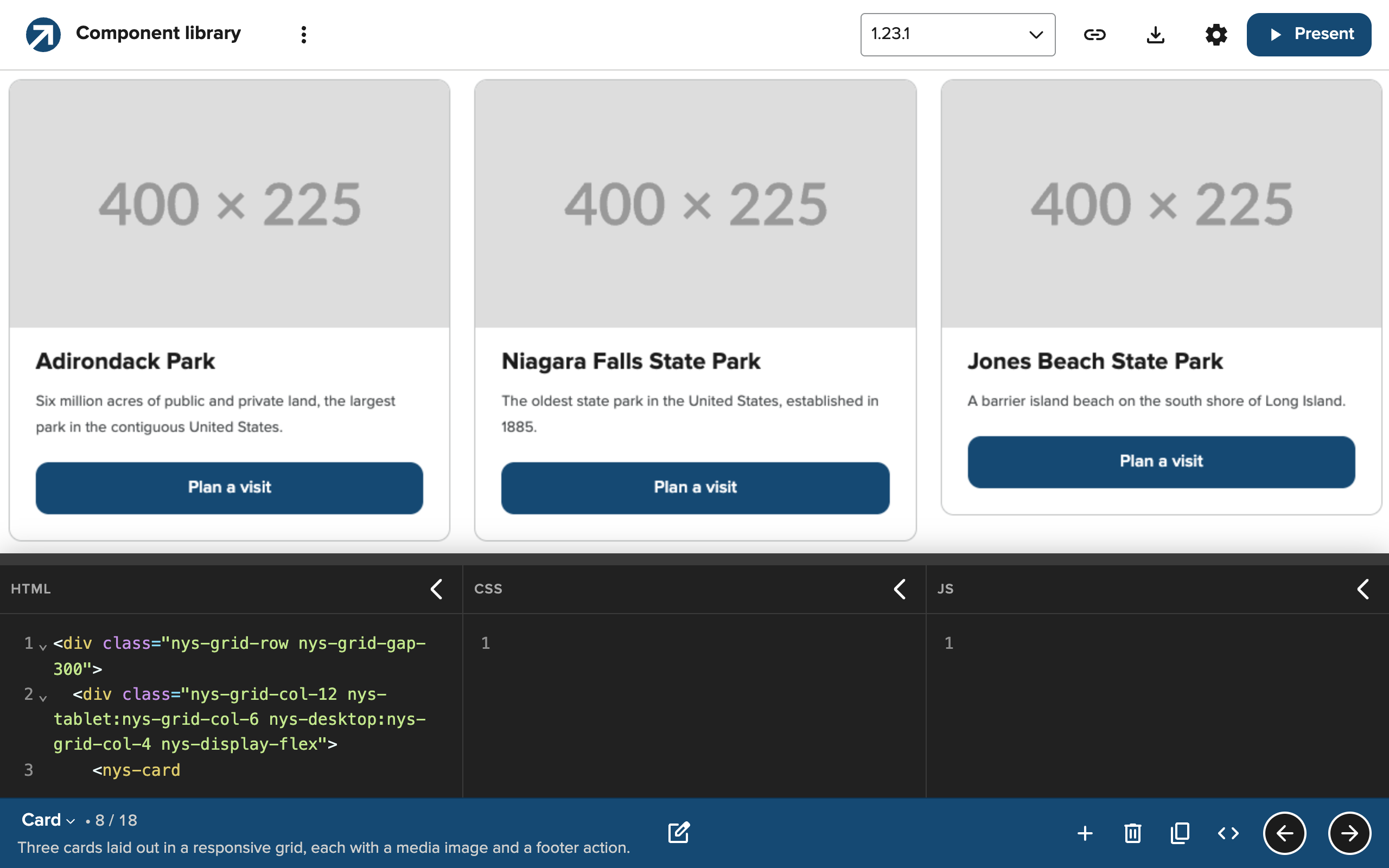
The CodePen half is familiar. The Google Slides half is there because I designed the playground around the way I present. When I record a walkthrough for another team or post a demo on LinkedIn, I want the code and the result on screen together, and I want to drive the whole thing from the keyboard.
Poke at it
The playground ships with a few starter decks. Start with Component library, which has a slide for every part of the design system. Open the card slide and you’ll find no CSS at all. Those are our cards, straight out of the box. Change the heading and the preview updates as you type.
That works for one component at a time. But what about an idea that takes a few steps to explain?
Lock it down, or make it configurable?
That’s where decks come in. My favorite starter deck is Customizing components. It walks through three ways a design system can handle customization: lock it down, make it configurable, or write guidance and hope.
Start with our global header. It’s a web component, so you can change its content — the app name, the agency, the links — but not its styles. On the slide, I wrote CSS to turn it crimson, set it in Comic Sans, and give the links yellow wavy underlines.
Nothing happens.
So what if your team needs a red button? We don’t ship one, but we do support style overrides: a handful of CSS variables, documented at the bottom of the button page. Set them and you get a red button. Delete them and you’re back to the default.
That override is a promise, and the next slide puts it to the test. It pretends the next release has landed: the UI font switches from Proxima Nova to a serif, and the corners get rounder. Both buttons pick up the new font and radius.
The red one stays red.
That’s the whole agreement between a design system and the teams using it, in one slide. Teams get a sanctioned way to change something, and the system keeps evolving underneath them without breaking it. You can explain that in documentation. It lands faster when people watch it happen.
Any version, on demand
That next release was pretend — a few lines of CSS on the slide. But the playground can load real releases, too. A version picker in the toolbar switches the design system underneath whatever you’re working on.
Go back to the card slide and pick a release from before the card component existed. The cards disappear. You’re left with the buttons and images that used to live inside them. It’s a small thing, but it makes the design system’s history visible.
Make your own
The starter decks are a good way in, but the playground is built for your own. Slides have titles, groups, presenter notes, and a default set of open editors. Decks share base CSS across every slide. Present mode goes full screen: the arrow keys move between slides, c toggles the code, and n shows your notes. You can switch between a dark or light editor, side-by-side or tabbed editors, and live or manual preview updates.
Decks live in your browser, not on a server. Share one as a link, or export it as JSON and send it to a colleague. The source is on GitHub, and if you dig into it, you’ll notice we built the playground itself with NYSDS components. Where the design system didn’t have what we needed — a code editor, for one — we built it custom on top of our design tokens.
Beyond the browser
Everything so far happens in a browser tab. But the playground is also an npm package with a command-line tool, and that’s where some of the most useful workflows live.
Remember the version picker? The CLI has the same idea built in. It can open the playground with local files already loaded into the editors, or print a shareable link to them without starting a server. Both take a --version flag. Here are a few ways we put that to work.
Reproduce a bug on the reporter’s version
Somebody reports a bug. The first thing I need to know is which version they’re on. Save their markup to a file and open it against that release:
npx @nysds/playground --html their-snippet.html --version 1.21.0Their code lands in the scratch pad, on their version. If it misbehaves, switch the version picker to the latest release and see whether we’ve already fixed it.
File it with Gemini CLI
Our team keeps a small workspace for filing design system bugs with Gemini CLI, the coding agent we officially support. It connects Gemini to the NYSDS MCP server, Chrome DevTools, GitHub, and the playground CLI, along with a shared set of instructions for what a good bug report looks like.
You describe the problem in a sentence:
/file-bug In the datepicker calendar popup, Tab goes to the Today and Clear buttons before the month controls.
Gemini reads the component’s source, reproduces the defect in a browser, and saves a minimal reproduction. Then it uses the playground CLI to turn that reproduction into a link, pinned to the version it tested against:
nysds-playground link --html repros/nys-datepicker.html --version 1.21.0 \
  --base https://its-hcd.github.io/nysds-playground/
Next, it searches GitHub for duplicates. If it finds one, it tells you instead of filing. (That datepicker bug, as it happens, is already filed. We use it to test the workspace.) Otherwise, it drafts the issue with the playground link in the Repro section and waits for someone to say “go.”
Every issue filed this way carries a live reproduction. Whoever picks it up doesn’t have to rebuild the bug from a paragraph of steps. They click the link and see it.
Sweep for bugs, then click through
The same setup scales from one bug to a batch. Ask for a sweep across a group of components, and instead of one report, you get a folder of suspects. Each one comes with a minimal reproduction and a Playwright script that proves it, and the playground CLI turns each reproduction into a link.
A sweep of our form components is how our checkbox group bug surfaced. Click the checkboxes with a mouse and everything looks fine. Tab to them and press the space bar, and the form data comes out wrong. I didn’t have to take anyone’s word for it. I clicked the link and watched it happen — right next to the code, on the exact version.
Let the agent check its own work
The CLI works in the other direction, too. When Gemini writes NYSDS markup — say, a form for a new service — it can save the snippet and open it in the playground:
npx @nysds/playground --html form.htmlNow you’re both looking at real components, not a guess at what the markup will do. Or Gemini can run link instead and hand you a URL to review, rather than a wall of markup.
If you find the playground useful, great. If you have feedback, I’d love to hear it.